How to Set Up Dual Monitors for Working From Home (Complete Guide)
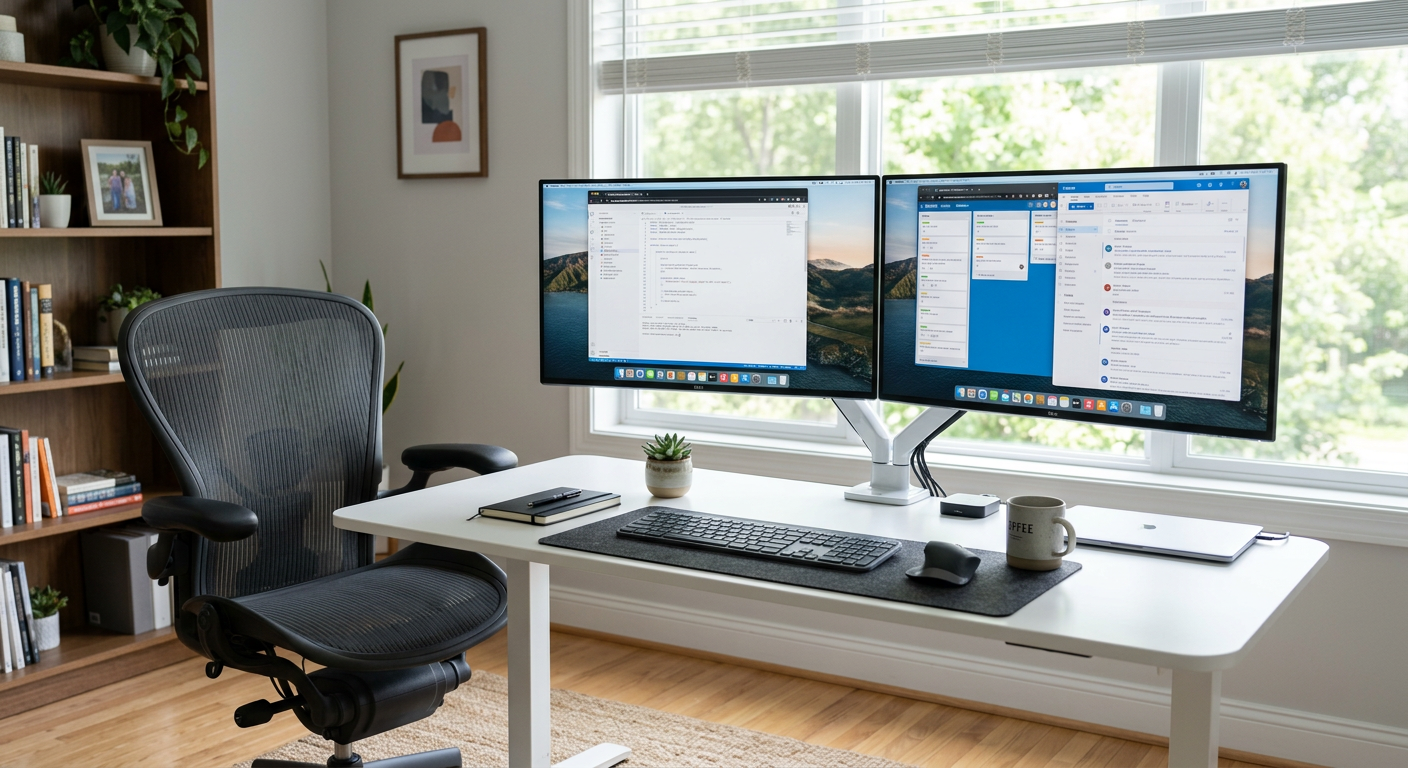
Dual monitors are the single biggest productivity upgrade for remote workers who do any kind of multi-tasking. Email on one screen, work on the other. Zoom call on one, notes on the other. The context-switching that used to require Alt-Tab just... disappears.
Here's everything you need to know to do it right.
What You Need
1. Check Your Laptop/PC Outputs
Most modern laptops have:
- USB-C/Thunderbolt 3/4: Can drive one or two monitors (check your specs)
- HDMI: Standard, drives one monitor
- DisplayPort: Often on desktop GPUs and some laptops
The rule: You need one output per monitor. If you only have one HDMI and one USB-C, you can drive two monitors. If you only have one HDMI, you need a docking station.
2. For Laptops: Consider a Docking Station
A Thunderbolt dock (like the Caldigit TS3+, ~$250, or the OWC Thunderbolt 4, ~$200) turns one Thunderbolt port into: power delivery + dual monitors + USB hub + ethernet. One cable to your laptop, everything works.
This is the clean solution. One cable in, full desk setup.
3. Choose Your Monitors
Same size and resolution: Cleanest visual experience. Everything matches.
Different sizes: Fine if one is a portrait secondary. Avoid putting mismatched sizes side-by-side if they're similar-ish in size.
For a second monitor to pair with a MacBook or PC, the best options in the 24-27" range are the LG 27UK850-W (USB-C, 4K) or the Dell P2422H (1080p, budget-friendly).
Positioning
Eye Level Rule
The top third of your primary monitor should be at eye level. Looking down at monitors is fine. Looking up strains your neck.
If your monitors are too low, a monitor arm solves this cleanly.
Side-by-Side Alignment
Place both monitors at the same height. Line them up so the inner edges touch or are close. Your primary monitor should be directly in front of you — don't put it at an angle.
Distance
An arm's length from your eyes to the screen (roughly 50-70cm). For 27" monitors at 1440p, you'll naturally want to sit a bit further than for 24" at 1080p.
macOS Setup
- Go to System Settings → Displays
- Click Arrange
- Drag the displays to match their physical position
- The display with the menu bar is your primary — drag the white bar to change it
Windows Setup
- Right-click desktop → Display Settings
- Click Identify to see which is "1" and "2"
- Drag displays to match physical layout
- Set your primary display
Cable Guide
| Connection | Max Resolution | Notes |
|---|---|---|
| HDMI 1.4 | 1080p/60Hz or 4K/30Hz | Most common |
| HDMI 2.0 | 4K/60Hz | Newer laptops/GPUs |
| DisplayPort 1.2 | 4K/60Hz | Best for desktops |
| USB-C (DP Alt Mode) | 4K/60Hz | Check your port supports video |
| Thunderbolt | 5K/60Hz | Highest bandwidth |
The Best Dual Monitor Setups By Budget
$200 budget: 2× Dell P2422H (24", 1080p) — clean, matched, reliable
$400 budget: LG 27BN65Q-B (27", 1440p) + existing monitor
$700+ budget: 2× LG 27UN880-B (27", 4K, USB-C with Ergo arm built in)
Pair with a monitor arm to get both screens mounted and your desk clear.
Frequently Asked Questions
Q: Can I run dual monitors from a laptop? A: Yes, if your laptop has two video outputs (or you use a docking station). Most modern MacBooks and Windows laptops support at least one external monitor. For two, check if your USB-C supports DisplayPort Alt Mode or use a Thunderbolt dock.
Q: Does dual monitor setup reduce laptop performance? A: Minimally. Driving two external monitors uses more GPU resources. On modern laptops with integrated Intel Iris or M-series chips, you won't notice any slowdown for office work.
Q: Should I get identical monitors for a dual setup? A: Ideally yes — same brand, size, and panel type for visual consistency. In practice, mixing a 27" primary with a 24" secondary works fine if the secondary is used for reference material, chat, or email.
Q: What's the best monitor arm for dual monitors?
A: The Ergotron LX Dual Side-by-Side Arm ($200) is the gold standard. VIVO dual arms work well for a budget option ($50-70). Both require VESA-compatible monitors (75×75mm or 100×100mm — most monitors qualify).