How to Look Good on Video Calls: Lighting, Camera, and Background Tips
You've been on a call with that person. The one who looks like they're broadcasting from a cave. Harsh shadows. Grainy webcam. Pile of laundry in the background.
Don't be that person.
Looking professional on video calls isn't about expensive equipment. It's about 3 things: lighting, camera angle, and background. Get those right and you'll look better than 90% of people on your next Zoom call.
The 3 Rules
Rule 1: Light Your Face, Not Your Room
The single biggest improvement you can make — and it's free.
Face a window. That's it. Natural light from in front of you (not behind you, not from the side) is the most flattering light source that exists. If your desk faces a wall, turn it around.
No window? Use a desk lamp.
- Point it at the wall behind your monitor so it bounces soft light back at you
- A BenQ ScreenBar (-130) mounts on top of your monitor and lights your face perfectly without glare
- Even a clip-on ring light pointed at your face works
Never have a window behind you. Your camera will expose for the bright window and turn your face into a silhouette.
Rule 2: Camera at Eye Level
Your laptop camera is below your face. That means everyone on the call is looking up your nostrils.
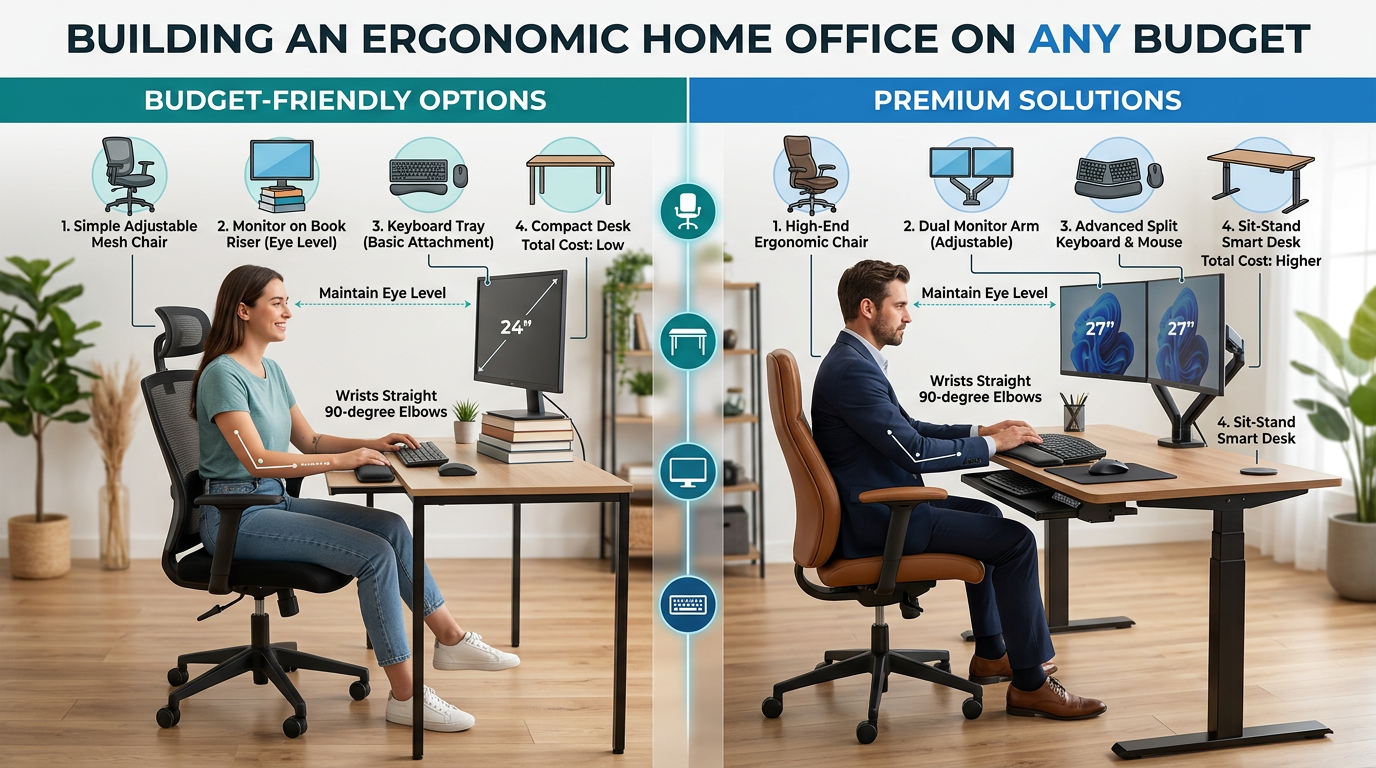
Fix: Put your laptop on a stack of books or a laptop stand () so the camera is at eye level. Or better: get an external webcam and mount it on top of your monitor.
Look at the camera, not the screen. This is hard but makes a huge difference. When you look at the camera lens, it looks like eye contact to the other person.
Rule 3: Clean Background
You don't need a perfectly styled bookshelf. You just need not-distracting.
Best backgrounds (ranked):
- Clean wall with one or two items (plant, art print)
- Tidy bookshelf
- Virtual background (if your webcam supports it well)
- Blur effect (built into Zoom/Teams)
Avoid: Bed visible, open closet, cluttered shelves, kitchen sink, bright window behind you.
Equipment Upgrades (If You Want Them)
Webcam Tier List
- Good enough: Your laptop camera + good lighting (free)
- Big upgrade: Logitech C920 () — 1080p, great auto-exposure
- Premium: Elgato Facecam Pro () — 4K, manual controls, amazing low-light
Lighting Tier List
- Free: Face a window
- Budget: Clip-on LED ring light ()
- Sweet spot: BenQ ScreenBar () — no desk space used
- Premium: Elgato Key Light () — adjustable color temp and brightness
Audio Tier List
The way you sound matters more than the way you look.
- Minimum: AirPods or any wireless earbuds with mic
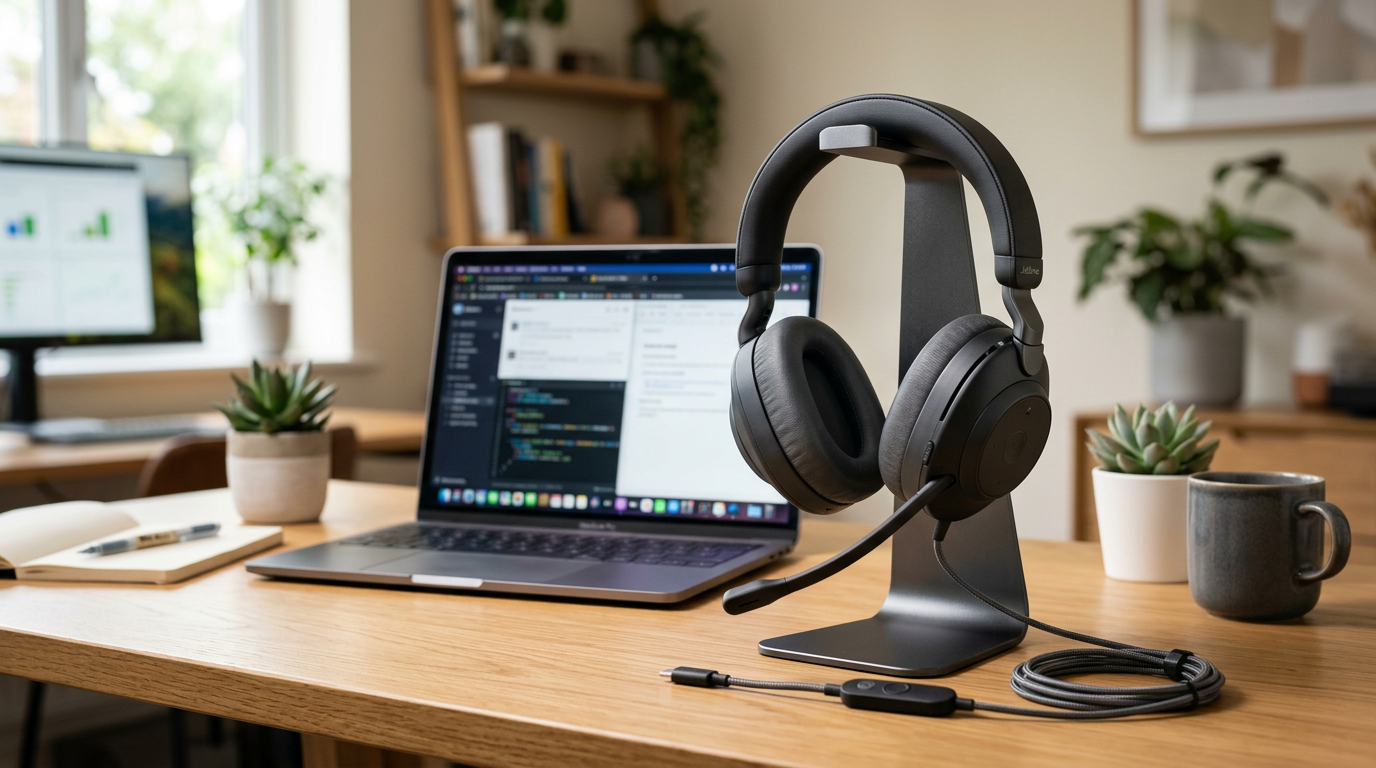
- Better: USB headset with boom mic (-80)
- Best: Standalone microphone + headphones (for content creators)
The 2-Minute Setup Checklist
Before your next important call:
- ☐ Light source in front of you (not behind)
- ☐ Camera at eye level
- ☐ Background is tidy (or use blur)
- ☐ Test your audio (Zoom settings → test mic/speaker)
- ☐ Close unnecessary browser tabs (saves bandwidth)
Quick Wins Summary
| Improvement | Cost | Impact |
|---|---|---|
| Face a window | Free | ⭐⭐⭐⭐⭐ |
| Laptop stand for camera height | 25 dollars | ⭐⭐⭐⭐ |
| Clean background | Free | ⭐⭐⭐ |
| External webcam (C920) | 65 dollars | ⭐⭐⭐ |
| Desk lamp / ScreenBar | 20 to 80 dollars | ⭐⭐⭐⭐ |
| Wireless earbuds with mic | 30 to 250 dollars | ⭐⭐⭐ |
The best part? The highest-impact changes are free. Just move your desk and face a window.
📚 Related Reading: